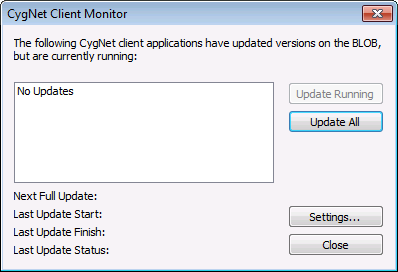
Opening the CygNet Client Monitor
Use the CygNet Client Installer (CInstall.exe) to install the CygNet Client Monitor application. The CygNet Client Installer sets up integrated version management to ensure that you have the latest version of the application files. See CygNet Client Installer for more information.
To Install CygNet Client Monitor Using the CygNet Client Installer
-
Open the CygNet Client Installer (Start Menu > All Programs > CygNet > CygNet Client Installer). The CygNet Client Installer/Launcher dialog box will be displayed.
Note: You will need to run the CygNet Client Installer as an administrator, click Run as administrator, and type an administrative password at the elevation prompt. See CygNet Client Installer for more information about UAC.
|
CygNet Client Installer/Launcher |
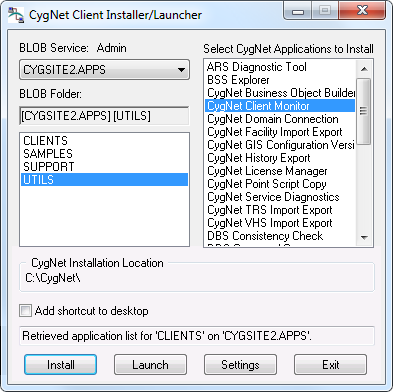
- On the Blob Service: Admin drop-down menu, select the APPS Service.
- In the Blob Folder list select UTILS to access the list of utilities available for installation.
- In the Select CygNet Applications to Install list select CygNet Client Monitor.
- Click the check box adjacent to Add shortcut to desktop to select/clear this feature. Selecting this feature ensures that you have version management settings.
- Click Install. A confirmation message will be displayed asking if you want to start the application.
- Select Yes to install CygNet Client Monitor.
- Click Exit to close the CygNet Client Installer/Launcher.
To Start CygNet Client Monitor
- Double-click the desktop icon, or the icon in the Windows taskbar (
 ), or right-click the icon and select Open CygNet Client Monitor.
|
CygNet Client Monitor |